

In my daily work i mostly focus on a combined environment with Apple devices and Windows devices. A few weeks ago I needed to add Android devices via Android enrollment to Intune. So I just followed the steps provided by Microsoft:
If you haven’t already, sign in to the Microsoft Intune admin center and set the mobile device management authority to Microsoft Intune.
Go to Devices > Android.
Select Android enrollment > Managed Google Play. If you are using a custom Intune admin role, access to this option requires Organization Read and Update permissions.
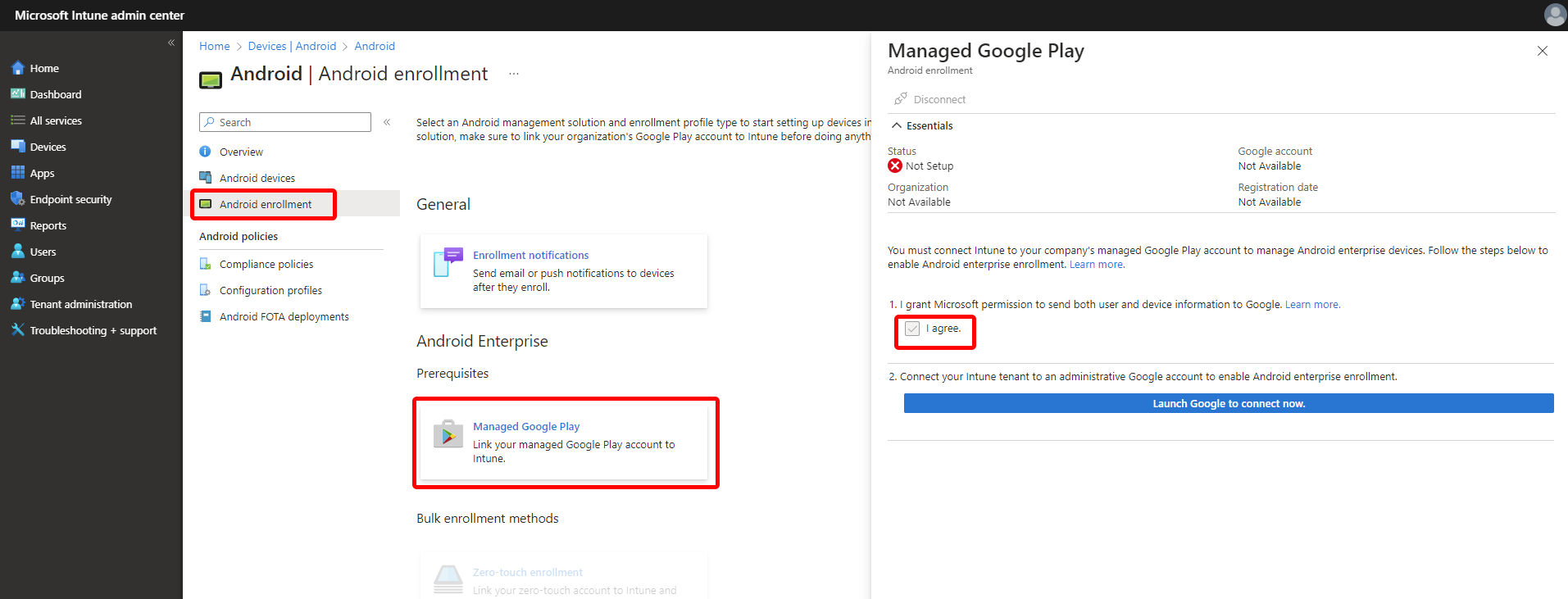
Select I agree to grant Microsoft permission to send user and device information to Google.
Select Launch Google to connect now to open the Managed Google Play website. The website opens on a new tab in your browser.
On the Google sign-in page, enter the Google account you want to associate with all Android Enterprise management tasks for this tenant. This Google account will be the one that your company’s IT admins share to manage and publish apps in the Google Play console. You can use an existing Google account or create a new one. The account you choose must not be associated with a G-Suite domain.
Important
Be sure to use or create an Enterprise account rather than a personal GMail account. Keep in mind that the account you use should be one that is easily shared or transferred in the case that the person setting up the Managed Google Play connection leaves the company or moves teams.
Note
If you’re using the Microsoft Edge browser, make sure to Sign-In to the browser with your Google account.
Enter the following details:
- Organization name: Your company name.
- Enterprise mobility management (EMM) provider: Verify that Microsoft Intune is shown.
Agree to the Android agreement, and then select Confirm.
But after 5 or 6 times trying to add my newly created google enterprise account it still wasn’t connected. When all information is filled in you’ll get the option to complete the registration. Clicking this button redirects you back to the intune portal where it will complete the registration, at least it should. When it redirected back i got stuck on redirecting which resulted in the following error:

So I first confirmed there where no settings in place which disallowed connecting to the google play store. After that i tried different browsers, a different PC and tried outside the office network. In the end it turned out to be a very simple but easy to miss fix. The redirect url isn’t woking with https://intune.microsoft.com, it does still work with https://endpoint.microsoft.com. It took me a few hours before I found this so i hopes this helps those who are getting the same error!
